Early access · For Mac
Walk in, pick a script, hit record.
StageView runs the screen behind you, a prompter that follows your voice and your recording, all from one Mac. When you stop, your best take comes back trimmed, levelled and captioned, ready to post.
The problem
Recording one video shouldn't take four apps.
Here's how most of us record a scripted video today.
- 1Open the script and copy it.
- 2Paste it into a prompter app.
- 3Start recording in another app, then press play on the prompter.
- 4Afterwards: trim the start and the end, fix the sound, write captions, crop a vertical version.
Do that for a hundred scripts and the recording is the easy part. And the room behind you is either the same wall every time, or a virtual background that looks like one.
The room behind you
Change the room. For real.
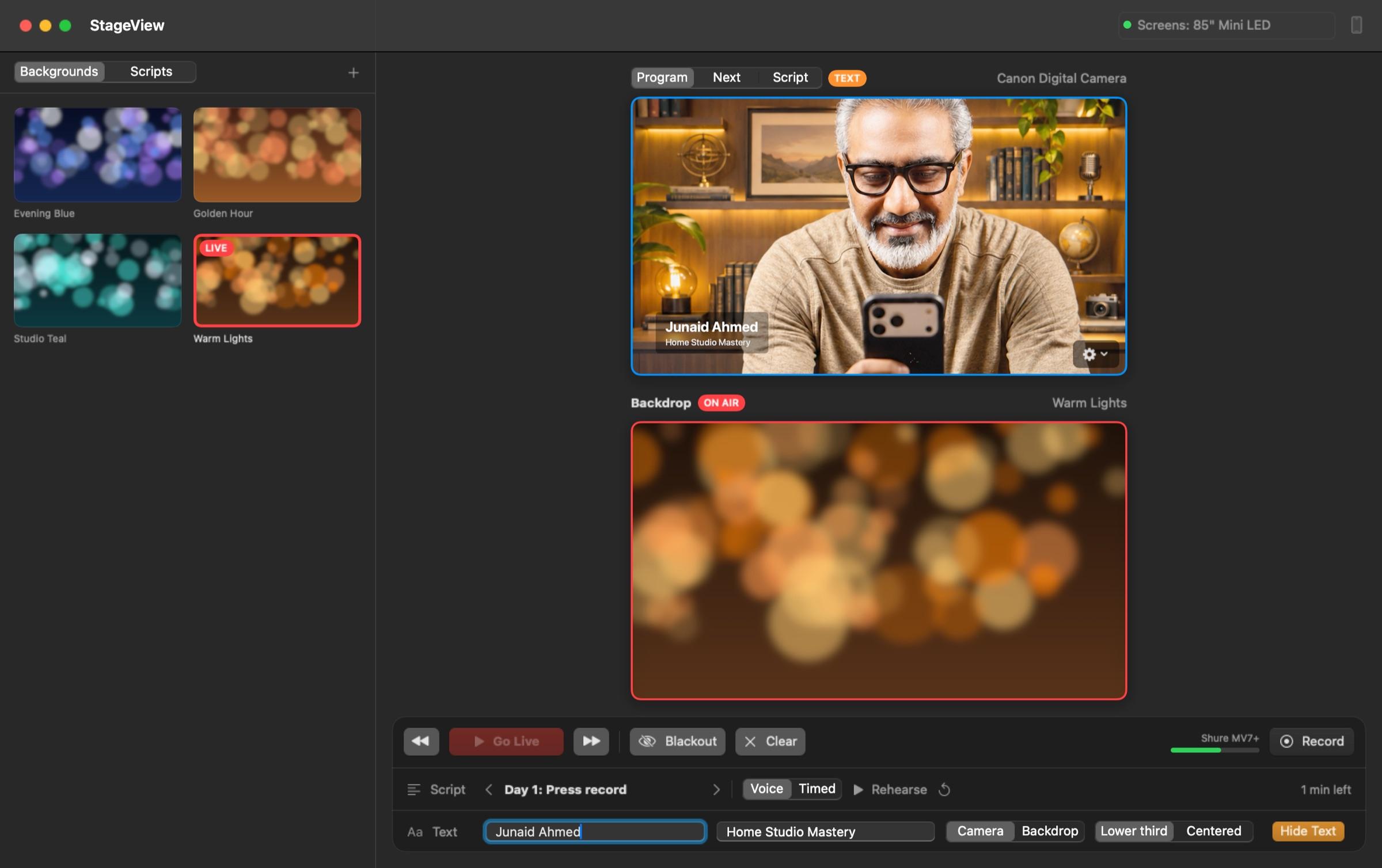
StageView puts your backgrounds on the TV or monitor behind you, and changes them with a click. The camera sees a real screen in a real room, softly out of focus the way a real room would be. No green screen, no cut-out edges around your hair.


Same chair, same camera. Only the screen behind changed.
The prompter
A prompter that follows you.
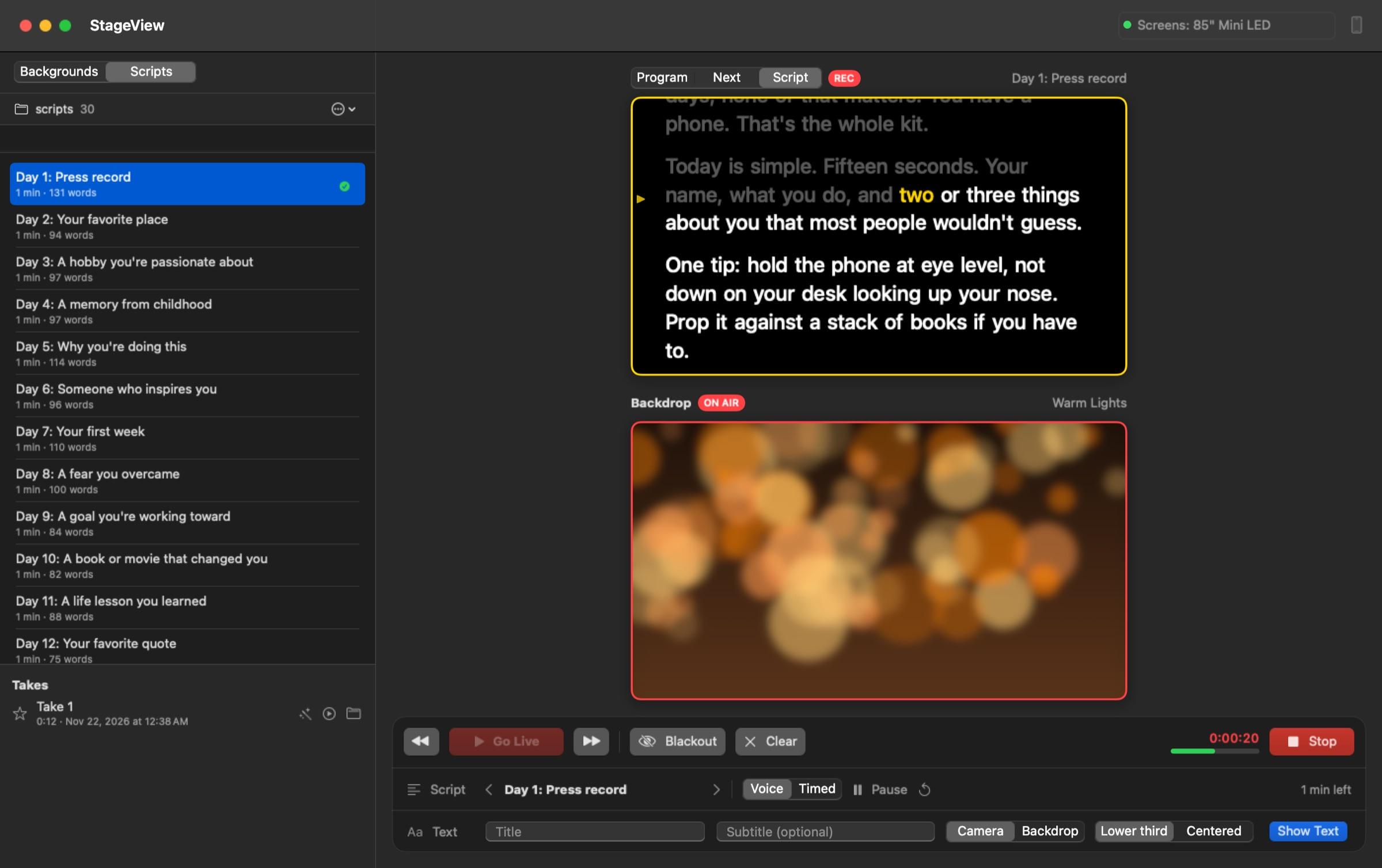
Point StageView at your folder of scripts. Pick one and press record: a three-second countdown, then the prompter moves as you read. Go off script and it waits until you are back.
- Your scripts as they are: Markdown or plain text, in folders
- Each recording is named after its script
- The next script is one click away
- On your teleprompter, or in a window on any screen
After you stop
Star your best take. Get a video you can post.
Mark the take you like. StageView trims the dead air before your first word and after your last, levels your voice for YouTube and social, and writes the captions and a transcript. A vertical version, framed on your face with captions, is made at the same time.
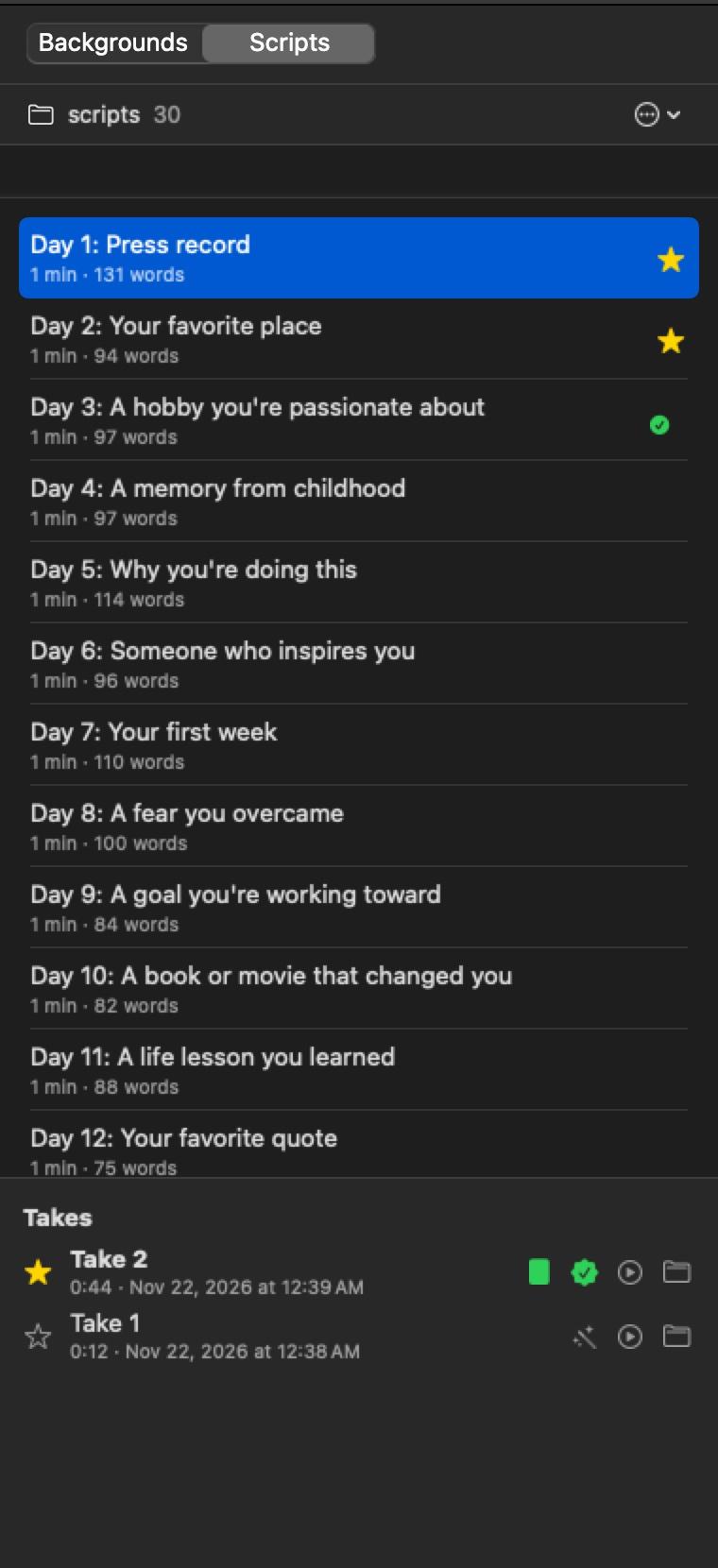

Got a batch? Finish all your best takes at once. StageView does the first one so you can check it, then the rest.
From your chair
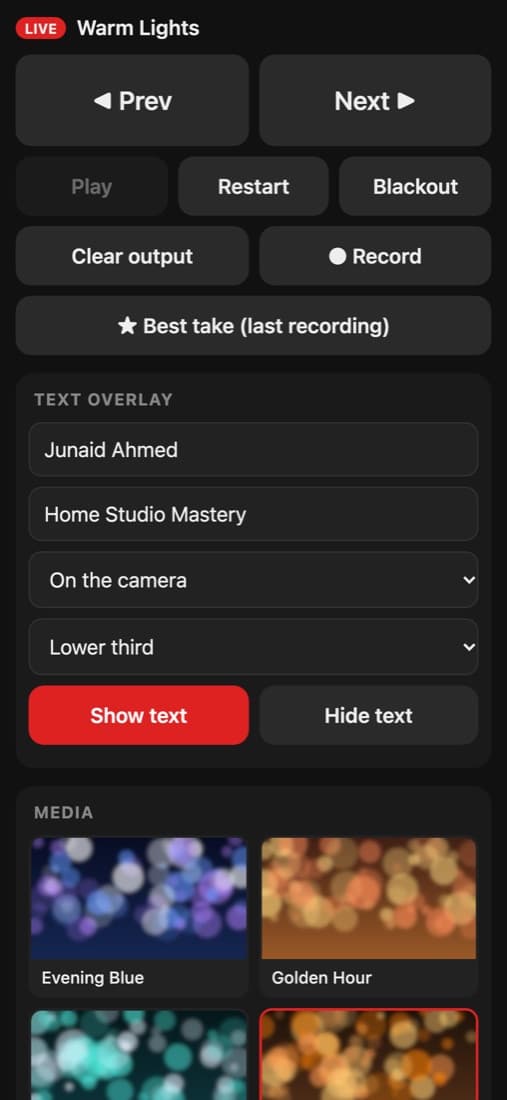
Run the whole studio from your phone.
Switch the room, put your name on screen, start recording and star your best take, without getting up. Scan the code on your Mac and your phone is the remote. Nothing to install. A Stream Deck works too.
The same video, the old way and with StageView.
What you need
- A Mac on the latest macOS
- The camera you already use
- A TV or monitor behind you, for the backgrounds
- A teleprompter and a Stream Deck if you have them. Neither is required
Your scripts and recordings stay on your Mac. Captions and transcripts are made on the Mac itself, so nothing you record is uploaded anywhere.
Early access
Try StageView first
We are using StageView in our own studio before anyone else does. Leave your email and we will tell you when you can try it.
Questions
Does it replace my streaming app?
No. StageView records your videos and runs the screens in your studio. If you live stream, keep using your streaming app for that.
Do I need a TV behind me?
For the backgrounds, yes: any TV or monitor works. The prompter, recording and finishing work without one.
Which cameras work?
The camera you already use: a USB webcam, a camera through an HDMI capture card, a Canon through EOS Webcam Utility, or your iPhone as a webcam.
Where do my videos go?
Into the Movies folder on your Mac. Finished videos, their captions and transcripts get their own folder, named after each script.
Is my content private?
Yes. Your scripts and recordings stay on your Mac, and captions and transcripts are made on the Mac itself. Nothing is uploaded.
When can I get it?
StageView is in early access while we use it in our own studio. Leave your email below and we will tell you when you can try it.
Want a studio to run it in?
We design and build studios you can walk into and press play. Start with the Studio Blueprint, or talk to us about building yours.
Hit record.